| Learn about the large number of functions available on the dashboard. |
|
Product: UserTesting Experience: Classic & New |
On this page:
- Dashboard overview
- Switch accounts and workspaces
- Create tests
- View tests, drafts, and highlight reels
- Manage folders
- Access templates
- Manage Contributor Networks
- Participant Hub
- Insights Hub
- Find help resources
Dashboard overview
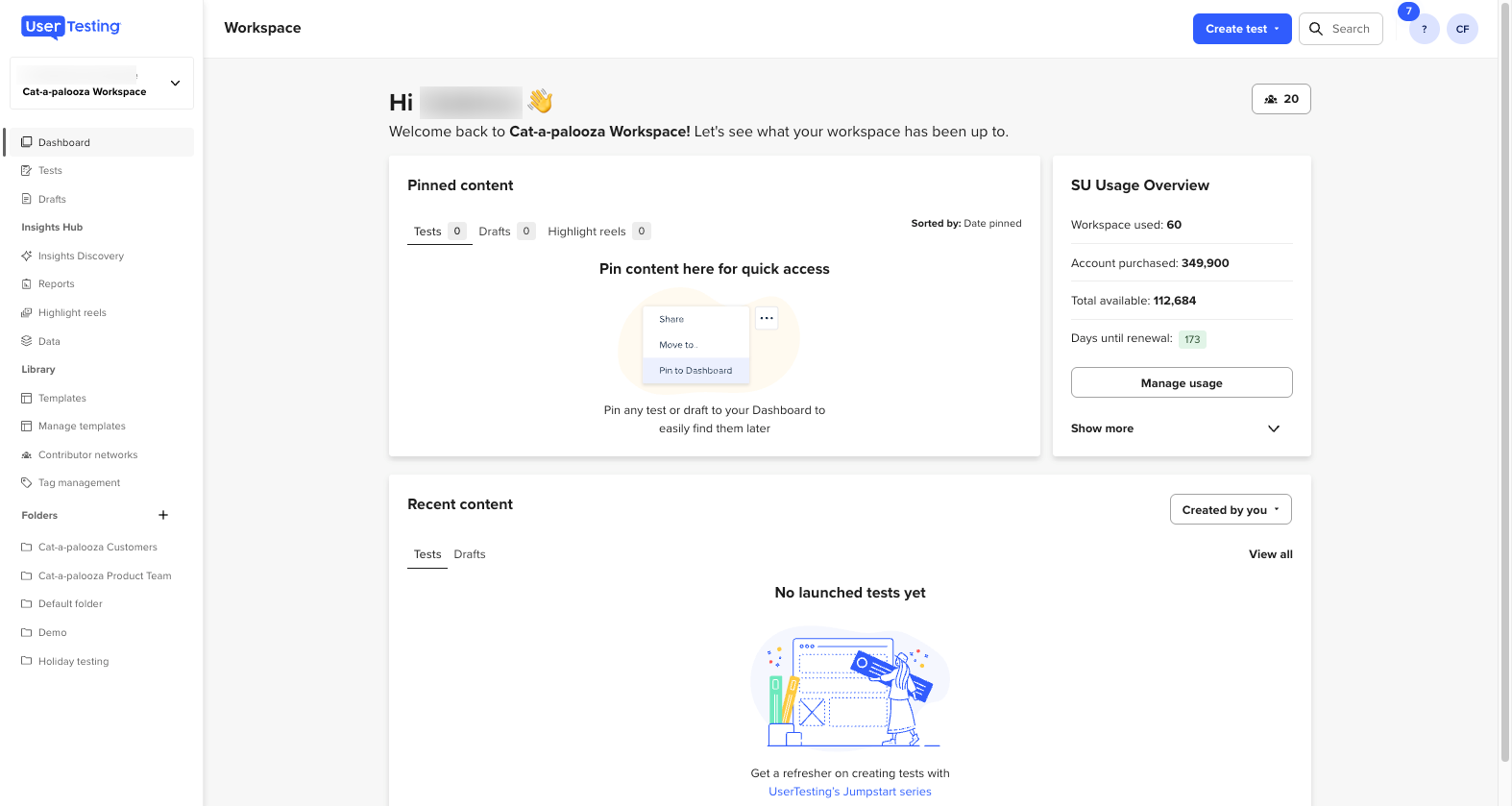
- The dashboard overview uses widgets to provide information.
- The Navigation menu (to the left on a desktop view) contains an account/workspace switcher at the top, allowing you to shift from one workspace or account to another.
-
This navigation menu also allows you to switch between tests, drafts, and highlight reels.
Global search
- Global search helps your team quickly find content across all studies.
- Improved functionality within transcripts and clips, allowing keyword, phrase, and tag searches.
- More refined filter options to search specific content types: summaries, tasks, transcripts, and notes.
Pinned content
- Pin tests to this portion of the dashboard for quick and easy access.
- Pin tests that are frequently copied or referenced.
Widgets
-
Action item widget
-
Features actionable and dismissible notifications to include:
- Upcoming Live Conversations.
- Alerts regarding account and workspace usage.
- Approval flow requests and updates.
-
Tests that have a problem.
-
Features actionable and dismissible notifications to include:
-
Admin overview widget
-
For Admins on the Flex plan, this widget highlights usage by the account and workspace.
- Quick view of total session units purchased, used, and remaining days till renewal.
- A highlight of most active workspace members.
-
Easy access to the subscription dashboard.
-
For Admins on the Flex plan, this widget highlights usage by the account and workspace.
-
Test widget
- Shows tests or drafts.
- Ability to filter all tests.
- More consistent experience with test list
Switch accounts and workspaces
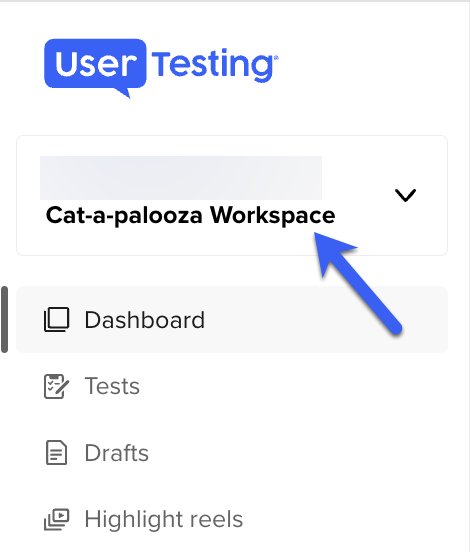
- Team members may be assigned to more than one workspace in the dashboard.
- The account and workspaces associated with it are in the navigation menu.
- Using the workspace switcher allows you to switch to other accounts and workspaces.
Create tests
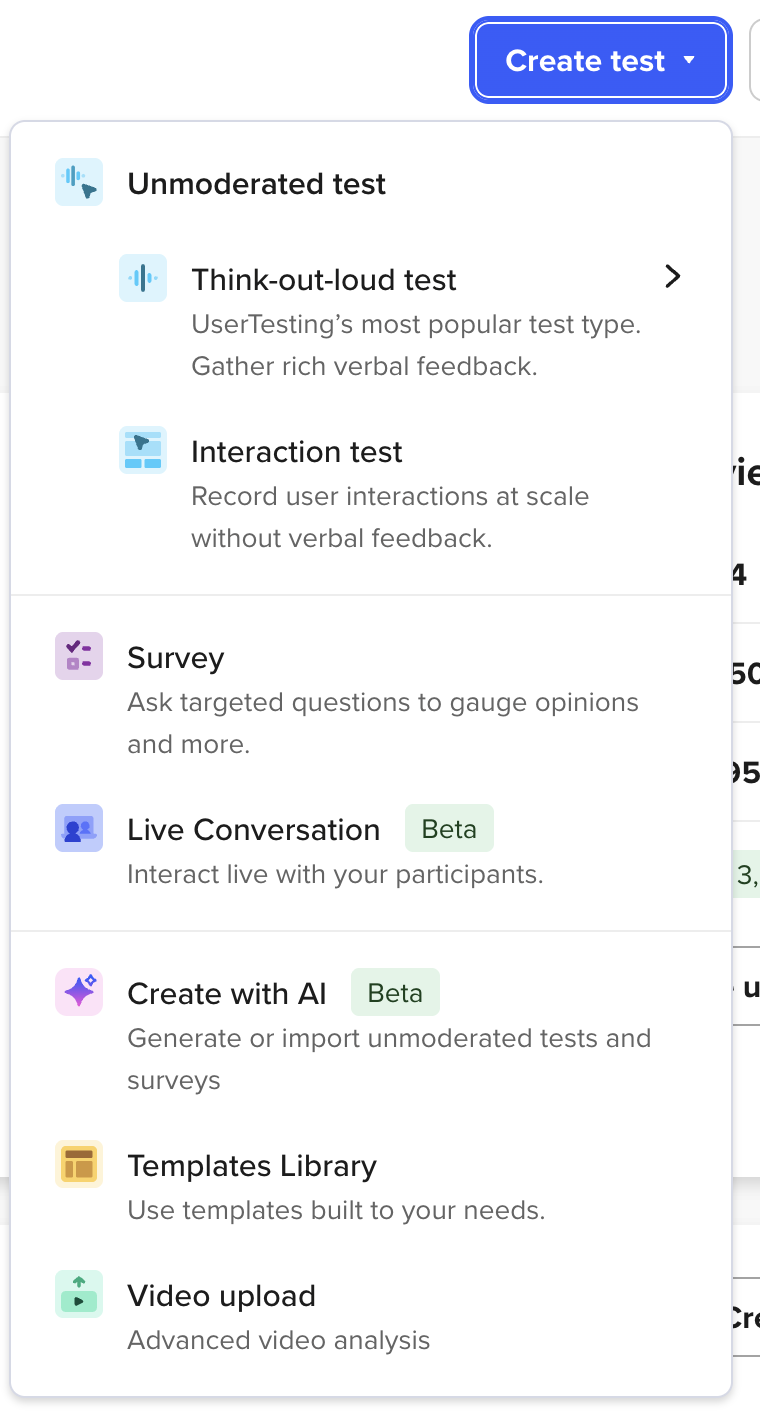
- Create tests right from your Dashboard using the Create test button.
-
A drop-down menu shows all the ways to create a test; depending on your subscription plan, you may have access to more than one of these methods:
-
An unmoderated test
- Think-out-loud (Classic or New)
- Interaction test
- Survey
- Live Conversation
- Create with AI
- Templates Library
- Video upload
-
An unmoderated test
View tests and drafts
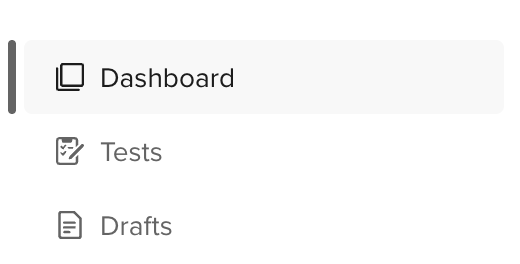
- Access the test and drafts from the navigation menu.
- In the navigation menu, select workspace to see active tests and insights in a given workspace.
- When viewing drafts, you can use the All drafts drop-down menu to filter drafts by those that need and are approved. This applies if your account has access to Approval flow.
Manage folders
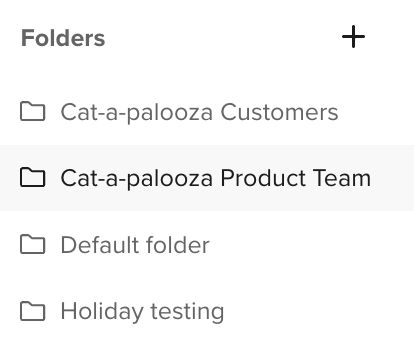
- You can find and manage your folders in the navigation menu.
- Folders that live within a selected workspace will show up here.
- When you click on a folder, the Dashboard view will update to show all the tests, drafts, and highlight reels in that folder.
- To change a folder’s name or to delete a folder, select the folder you want, and then click the Actions button for the drop-down menu to Edit or Delete.
- To add a new folder, click the “+” icon in the folders section of the navigation menu.
Access templates
- Templates are pre-built test plans that UserTesting has designed with industry best practices in mind.
- Your team can also build their own templates to share with people on your account.
- If available on your account, you will see the option to Manage Templates for test plans, audiences, screener questions, and Quick Answers in your Template Library.
- To learn more about templates, see our article, Using Templates.
Manage Contributor Networks
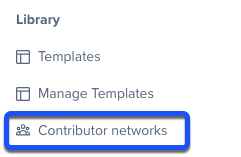
- Find your Favorite contributors networks and Custom Networks when you click Contributor Networks under Library in the Navigation menu.
Participant Hub
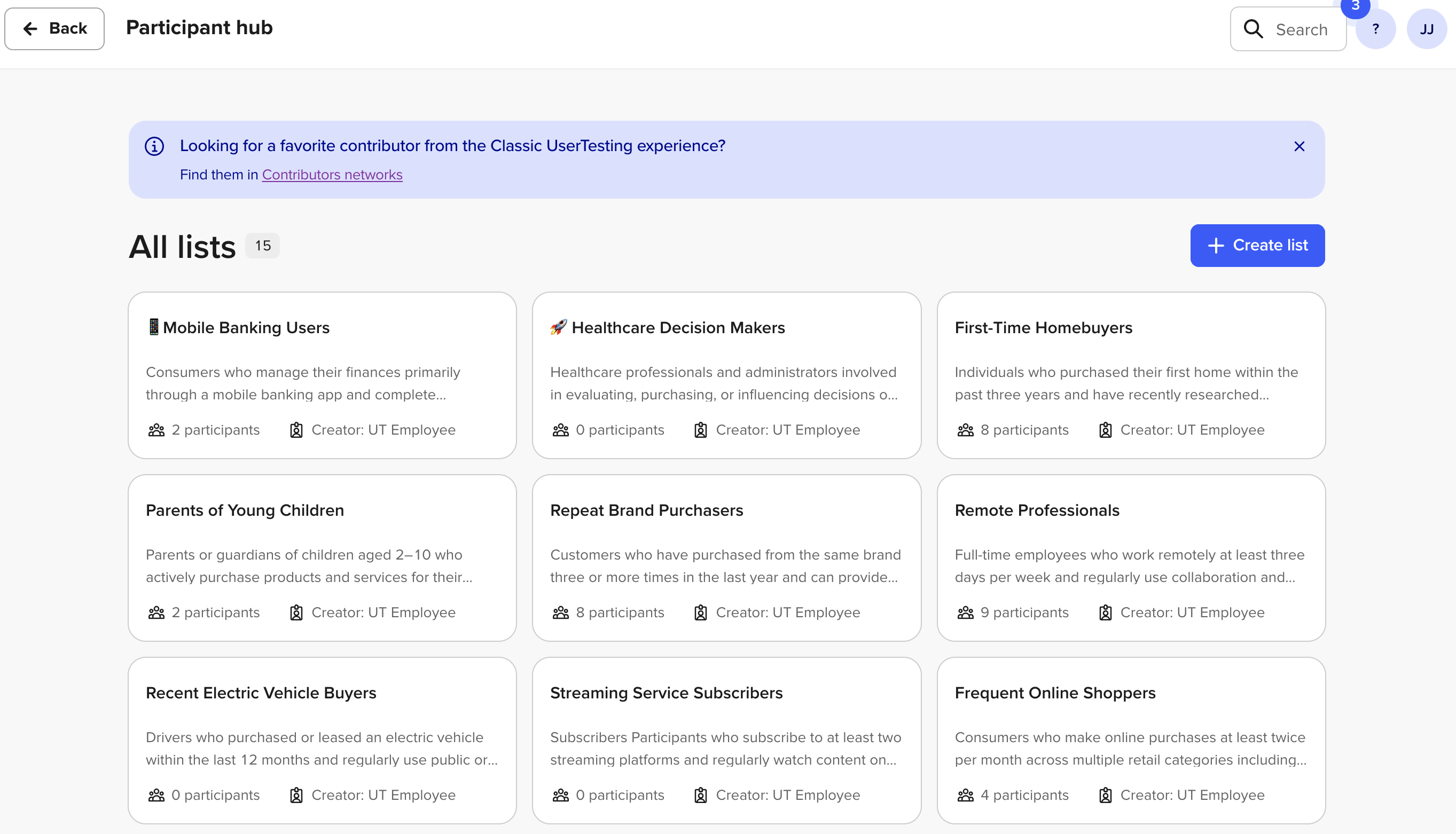
- The Participant Hub is where you can find groups of pre-selected research participants that you create and save for future use.
- When you create a new study, you can select a Participant List as a starting point for your recruitment.
Insights Hub
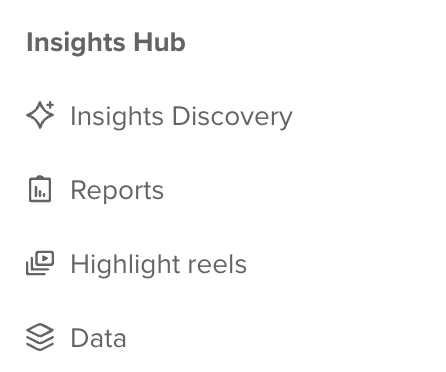
- Go to the Insights Hub to understand existing research, accelerate analysis and synthesis, streamline reporting, and collaborate with team members.
- Insights Discovery, powered by AI, allows you to pull together patterns and trends from unmoderated tests and surveys.
- Reports lets you gather results, video clips, and other key findings and organize them into a clean, shareable format.
- Highlight reels is where you can create and access curated videos of clips from your test sessions.
- Data connects all of your data sources, from UserTesting and external places (like app reviews), to help you see the bigger picture.
Find help resources
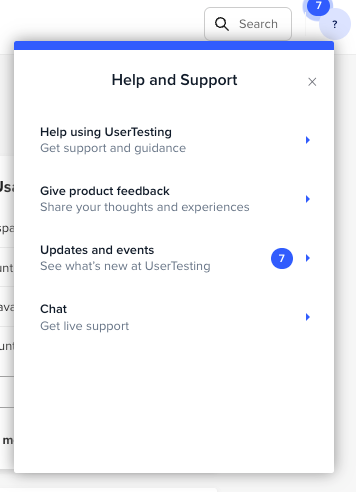
- If you need additional support and guidance, click the “?” button by the initials button.
- Multiple options are available for help, to include:
- Help articles in our Knowledge base.
- Video tutorials at UserTesting University.
- Live support
- A community forum, and more.
Related content
|
Want to learn more? Check out these Knowledge Base articles... |
Interested in growing your skills? Check out our University courses... |
|
Need hands-on training?
|
Can't find your answer?
|