| Uploading new data to your panel, as well as how columns can be mapped or created. Whether you are uploading a new CSV to a project or directly into your Research Hub panel, you can map the columns to existing fields or create new ones. |
This article applies to User Interviews
On this page:
Updating and Adding Participant Data
Data for existing records will only be updated if there is a match with the email address, and the email column has been mapped correctly.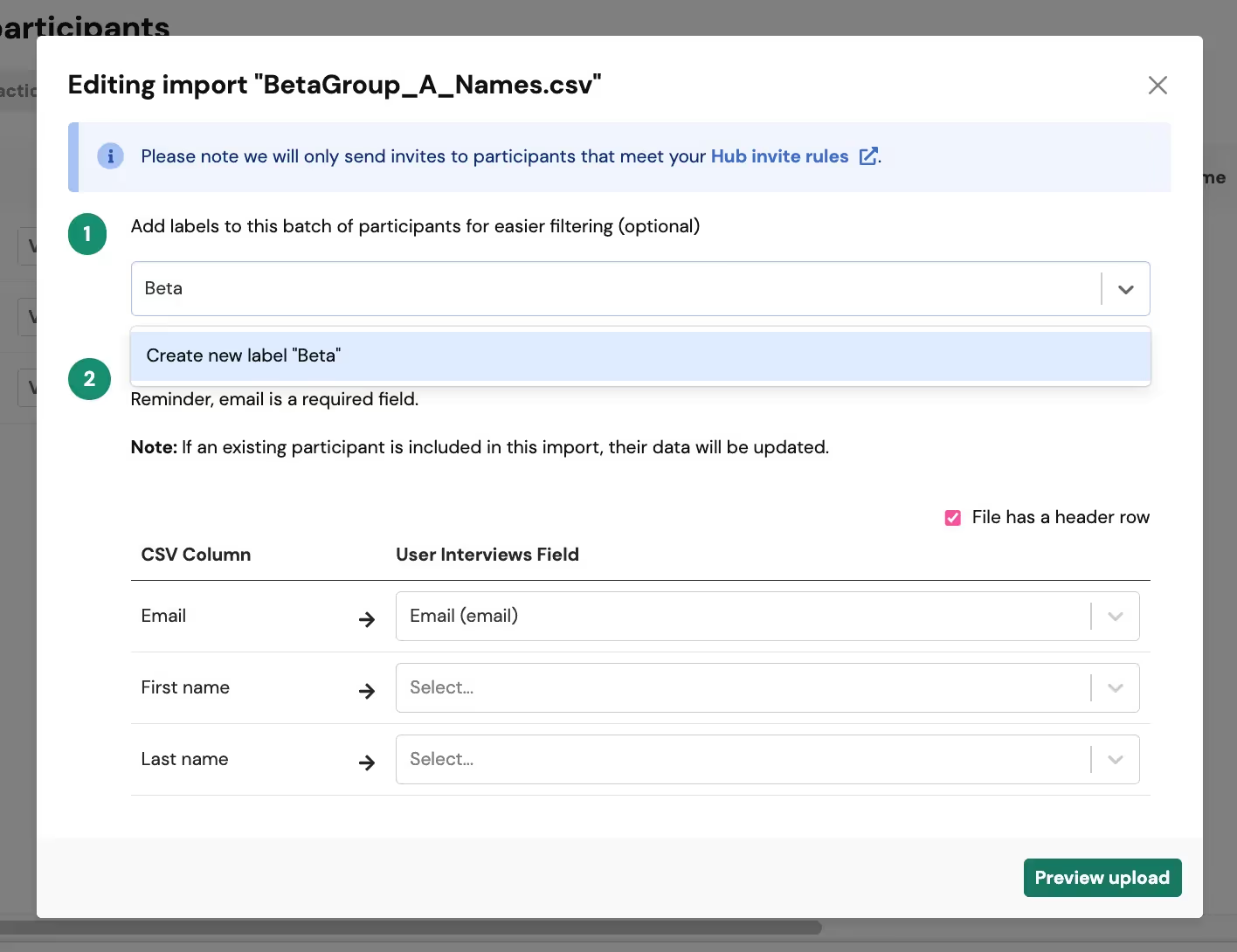
For instance, participant Joe (joe@joe.com) is currently listed as "Joseph" in your Hub panel, but prefers to be called Joe. If you upload a new CSV file that includes Joe's existing email and preferred name with the email column mapped, his name will be updated to "Joe". If the email columns are not matched, a new participant will be created.
Adding New Participant Data
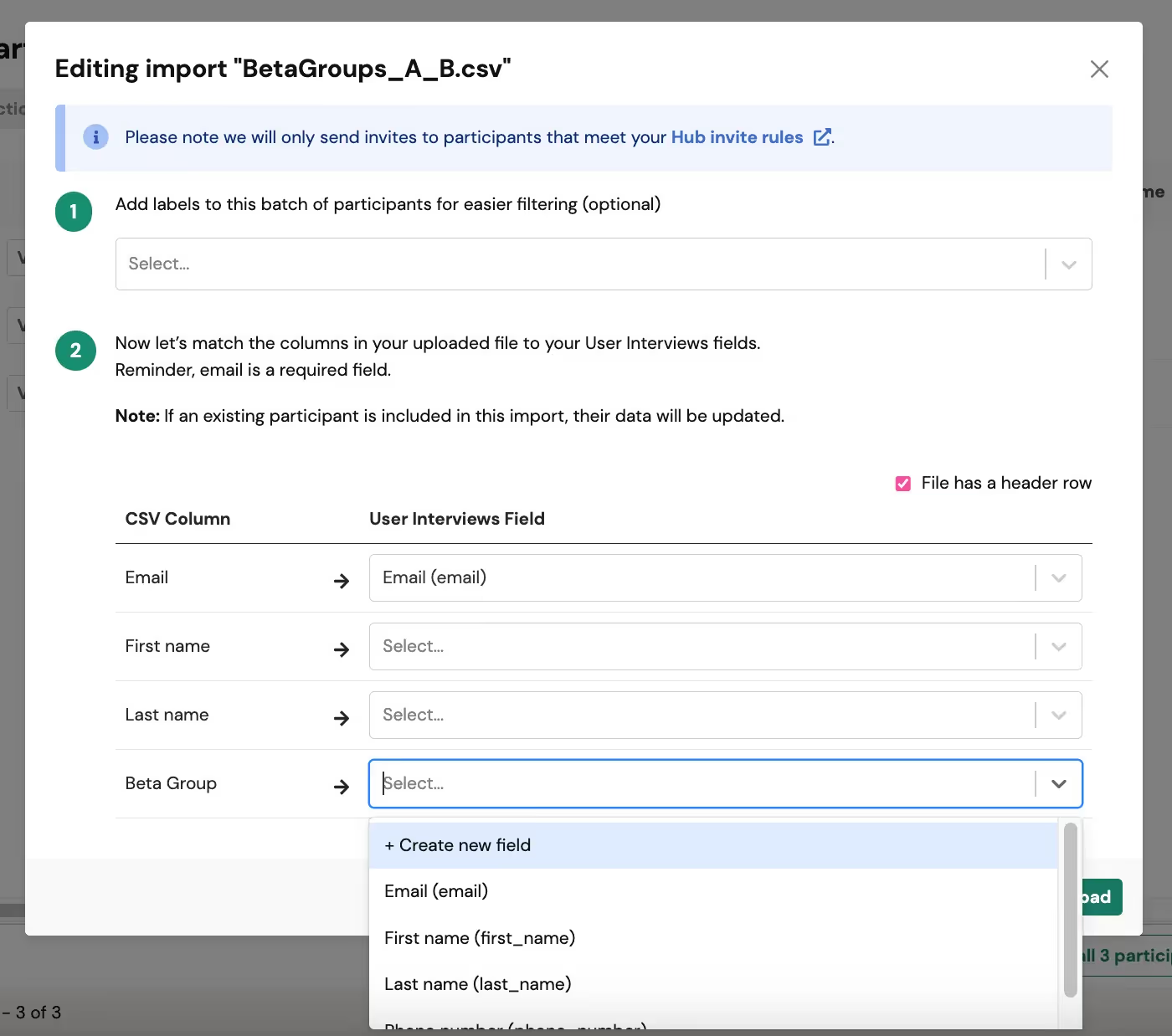
When importing a new CSV, you can:
- Add a label to the entire batch of participants to make filtering easier in the future.
- Map new data to an existing column, selecting it from the drop down.
- Add new data to create a new column by selecting "create new column." You can then specify the type of field that you are adding: text, number, date, or Yes/No.
Note: Columns added via CSV upload will be added to the entire population and all panels within your organization.