| Upload your company logo to Research Hub to create consistent branding for your team and enhance the participant experience. |
This article applies to User Interviews
Who can use this feature?
🗣️ Researchers with Admin permissions
⭐ Only available with paid Research Hub plans
On this page:
- About adding a logo
- What are the supported logo sizes and formats?
- How do I add or update a logo for my Research Hub team?
- New way to upload a logo: From the Teams drawer
About adding a logo
In Research Hub, admins can configure branding and communication defaults to ensure consistent, professional interactions with participants. In this article, you’ll learn how to add or update your team’s logo for use in all pages you use to interact with your participants, including:
- Emails
- Opt-in forms
- Study applications
- Screener surveys
- Scheduling pages
- Confirmation pages
💡 Keep in mind that the logo is set at a team level, so updating the logo will change it for everyone else in your team for both launched and future projects.
To learn about other branding and communication defaults you can set up for your team (such as sender profiles, confirmation pages, and email templates), check out this support article.
What are the supported logo sizes and formats?
Logo size
The recommended dimensions are 240px by 240px for square logos and 240px by 400px for rectangular logos. Larger images will be automatically resized. The maximum file size allowed is 5mb.
Logo formats
We support JPG, PNG, and SVG image formats. We recommend using a file with a transparent background, and cropping out any extra space or padding from around the logo.
How do I add or update a logo for my Research Hub team?
- Click on your name at the bottom of the left navigation bar, and then click on "team settings."
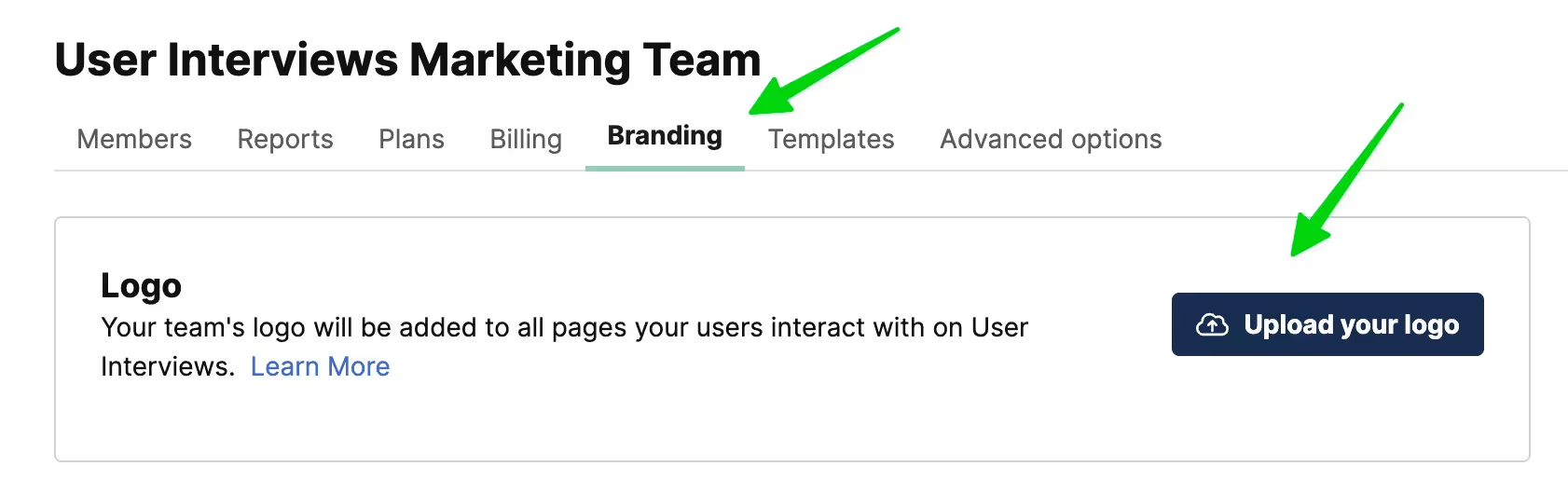
- Navigate to the "branding" tab.
- If your team doesn't currently have an uploaded logo, click "Upload your logo" and add your logo.
Note: If your team does have a logo, click "Replace logo" and add your new logo. You can still replace the logo from your Team Settings.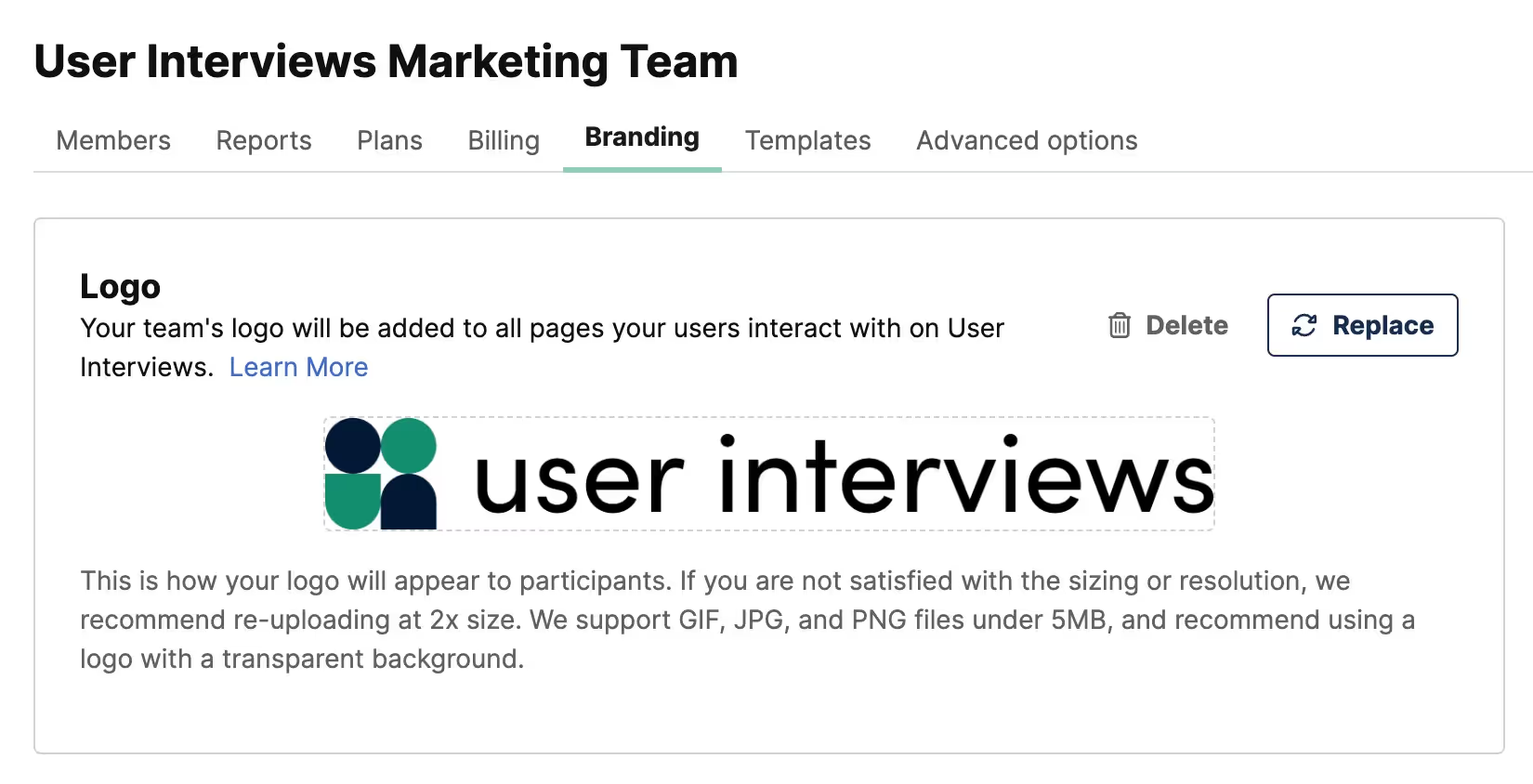
- Everything look good? Click "Save logo." Your logo will now appear on all previously launched projects and future projects.
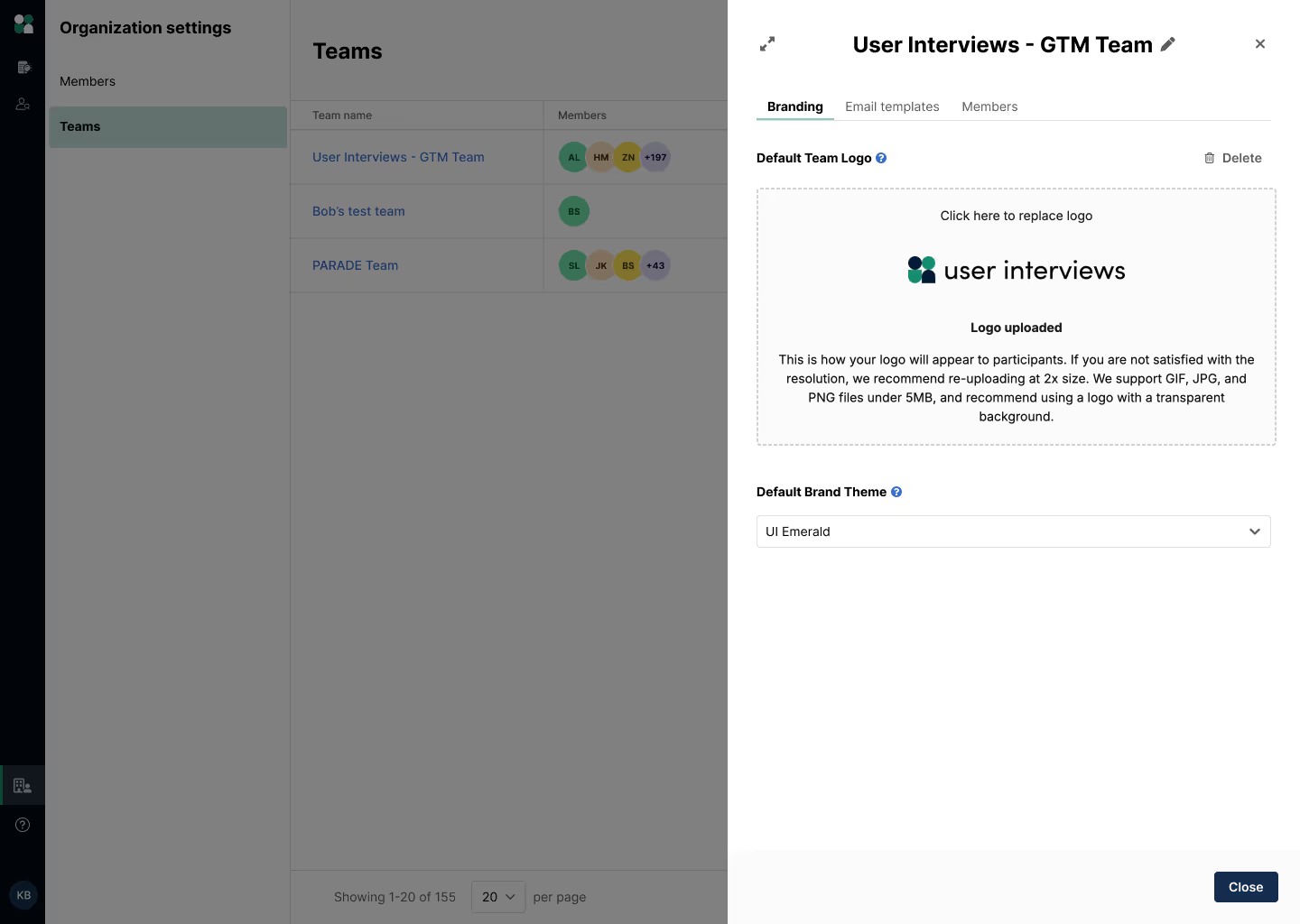
New way to upload a logo: From the Teams drawer
With our new Teams feature, you can add a team-specific logo while creating a new team.
- Head to the Organization settings section of the UI platform, then click on the Teams tab.
- Create a team or select the existing team you'd like to add a logo for.
- A drawer will open up where you can add or replace your team logo and edit other team-specific settings.