| Our email themes allow you to create emails that reflect your brand. |
This article applies to User Interviews
🗣️ Researchers with admin permissions
⭐ Available on Research Hub paid plans
On this page:
- About email themes
- How do email themes work?
- How do I create or edit a theme?
- How do I add a theme to a project?
- For administrators: set a default theme
- FAQs
About email themes
Email themes help your team to style the emails that get sent to participants. Applying custom HTML/CSS to your email theme helps your users recognize, trust, and respond to your Research Hub emails, ultimately resulting in a more effective recruit.
You can also keep your tone and voice consistent with personalized messaging by creating email templates, and applying a sender profile so participants better recognize your team emails.
New to User Interviews? Get up-and-running fast with our Quick Start Guide on the User Interviews Academy.
How do email themes work?
Email themes are created at a team level but activated on a project level. The selected theme will be consistent for any emails automatically sent to participants. This includes project invites, approvals, reminders, thank you emails, and more.
Your teammates can apply themes you’ve created to their own projects, helping your team stay consistent with company branding, and saving time across the organization.
You can customize:
- Font size
- Font color
- Button color and styling
- Margins and spacing
- Footer message
- And more!
How do I create or edit a theme?
- Click on your username when logged in, and select “Org settings” from the dropdown
- Navigate to the “Branding” tab and scroll to the “Email themes” section
- Click the “+ New theme” button, or else click on the ellipsis icon alongside an existing theme and select “Duplicate”
- Give your new template a name, edit the HTML and CSS, and hit save.
- Don’t forget to test your new theme—click on the ellipsis icon alongside your new theme and select “Send test”
How do I add a theme to a project?
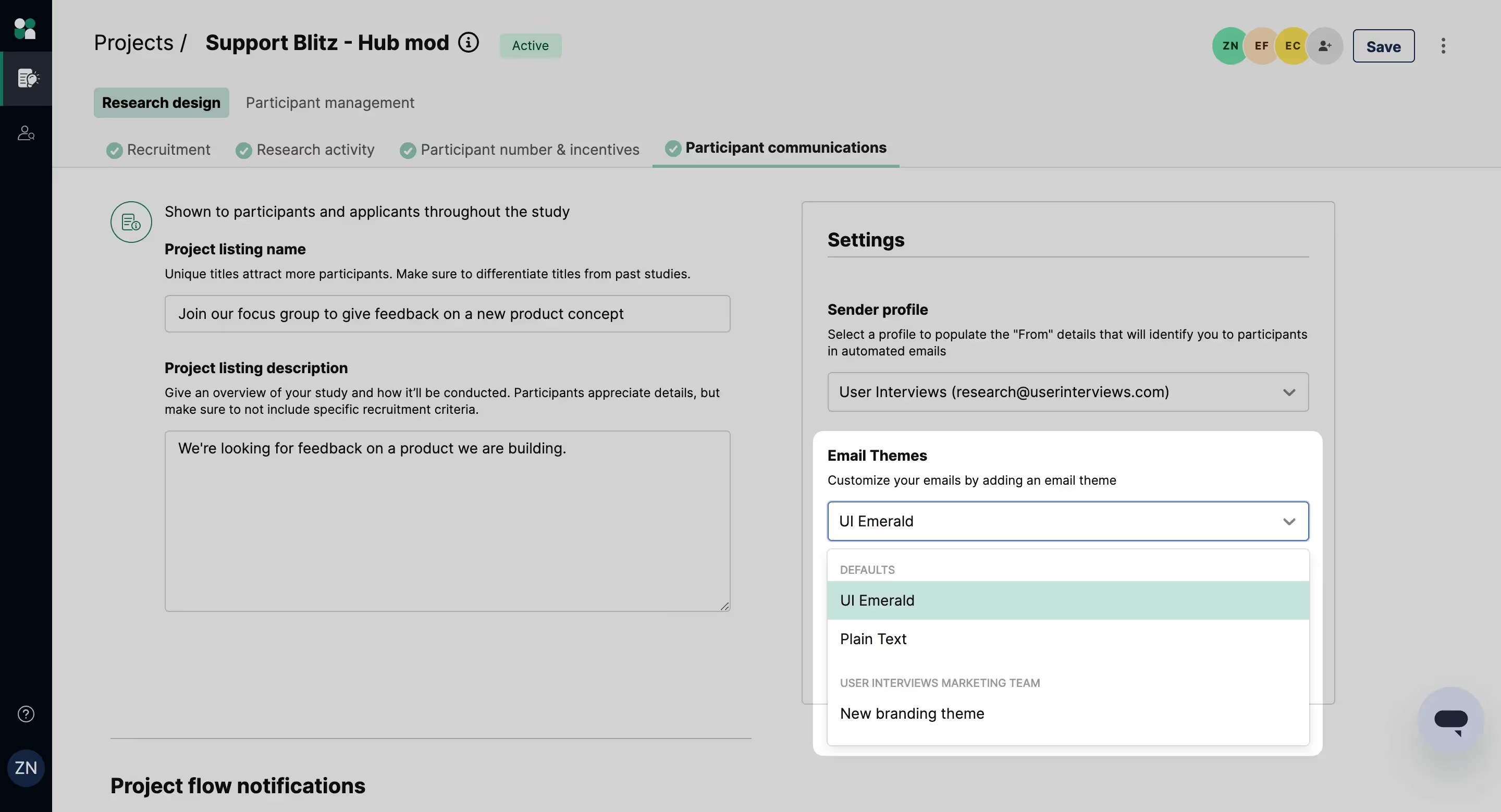
Apply an email theme to your project to style all of the emails your participants will receive
- Navigate to the "Participant communication" tab of a draft or active project
- Click into the Email themes dropdown, and select your chosen theme
- This theme will be applied to all of the automated emails contained in this project
For administrators: set a default theme
Administrators can set a default theme for all research within their team. This theme is automatically applied to new projects.
- Click on your username and select “org settings” from the dropdown.
- Navigate to the “Branding” tab and scroll down to the “Email themes” section to see all the available themes.
- Click on the ellipsis icon alongside your chosen theme and select “Mark as default”.
Note: Researchers can choose to override the default theme for their project.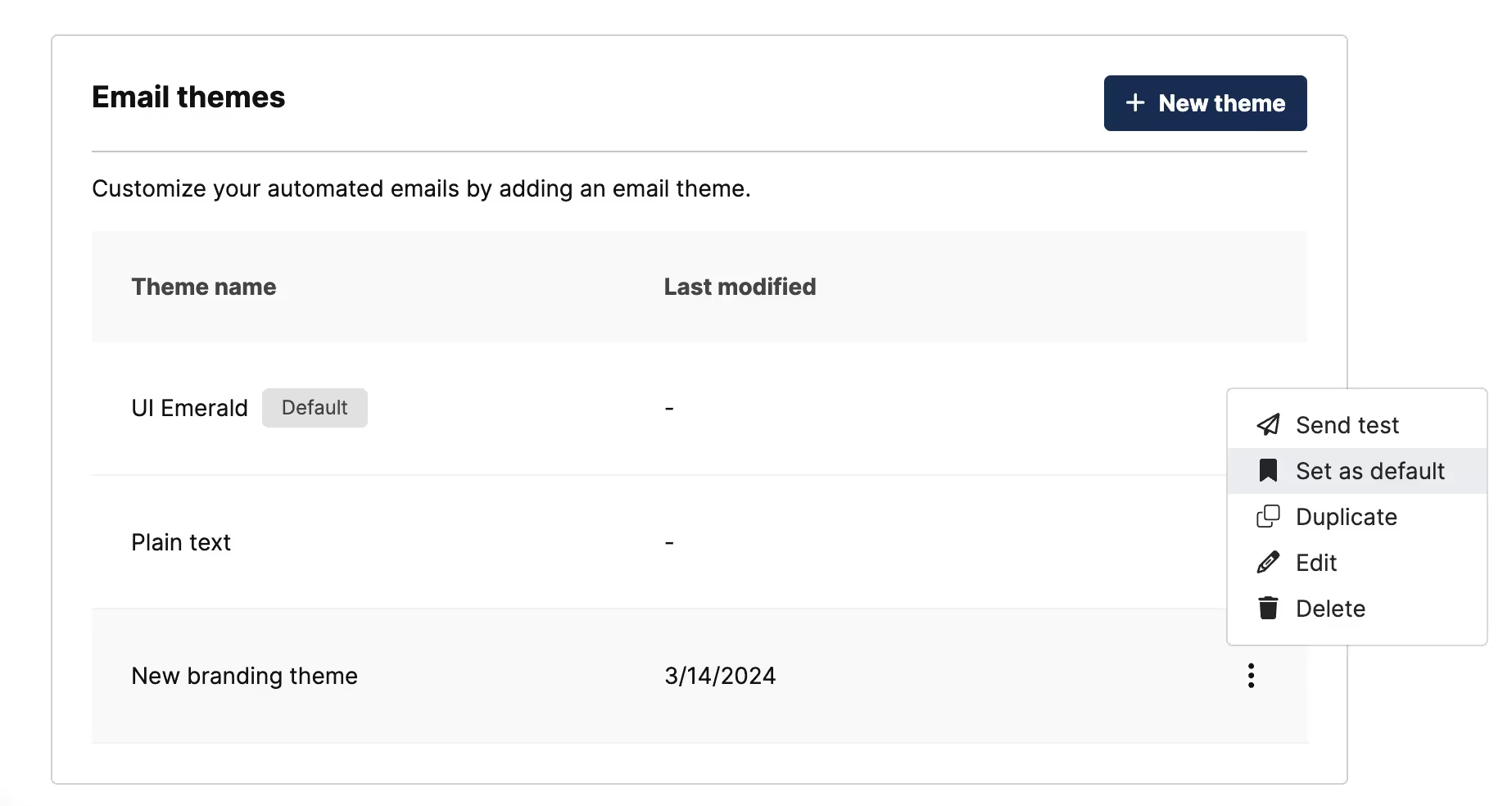
FAQs
Are email themes supported on Outlook?
While email themes are supported in Outlook, there are a few limitations. At this time, Outlook does not support the following CSS in Email Themes.
- ax-width or height
- border-radius
- media queries
- background
- flex
- rem
What logo image types do you support?
We support both PNG and JPEG images. At this time, we do not support SVG images. If you try to upload an unsupported image, it will most likely not appear in the email.
Does my logo have to be a publicly accessible image?
The logo you link must be a publicly accessible image for the image to appear in the email.
What logo variable should I use if I want to put a logo I've uploaded into my email?
If you want to use a logo that was uploaded to UI, make sure you use the logo variable in quotations, for example, <img src="{{team_logo_url}}">.
Where can I learn more about how to customize emails sent from Hub?
For more information on how to customize automated emails, check out our Hub project emails support guide.