EnjoyHQ offers many ways of sharing and the following content can be shard:
- Documents
- Highlights
- Projects
- Stories
- Dashboards
Sharing content is as simple as locating the share option and copying the generated share link.
EnjoyHQ also provides free Slack and Trello integrations, which allow you to share content directly to Slack channels or Trello cards.
Note: Any active member of your EnjoyHQ team will be able to access all Reports and published Stories without submitting approval requests. Read more about permissions and what is accessible by different roles.
Pro Tip:
- When the “Require approving access to shared dashboards, documents, and highlights” option is enabled:
- Scenario 1: A user accessing the shared link without an EnjoyHQ account
The user will be prompted to create an account and they will be required to request access - Scenario 2: A user has an existing account, but the “Require approving access to shared dashboards, documents, and highlights” option is enabled
The user will be prompted to request access to the shared resource.
- Scenario 1: A user accessing the shared link without an EnjoyHQ account
- This setting is only viewable by the account’s owner at the moment, and if an admin is in doubt, it would be worth double-checking with the account’s owner whether the above setting has been enabled.
Accessing share links
Colleagues who do not have an EnjoyHQ account will need to provide their name and email address so that their request can be approved by an administrator.
Similarly, read-only users can request access by visiting the same link. Collaborator and administrators will be taken directly to the shared resource.
Approving or rejecting access
Workspace administrations be notified via email whenever access to a shared item is requested and access requests can be manage in the Shared history section of the Settings menu.
There access requests can be approved or rejected, and all shared items can be viewed.
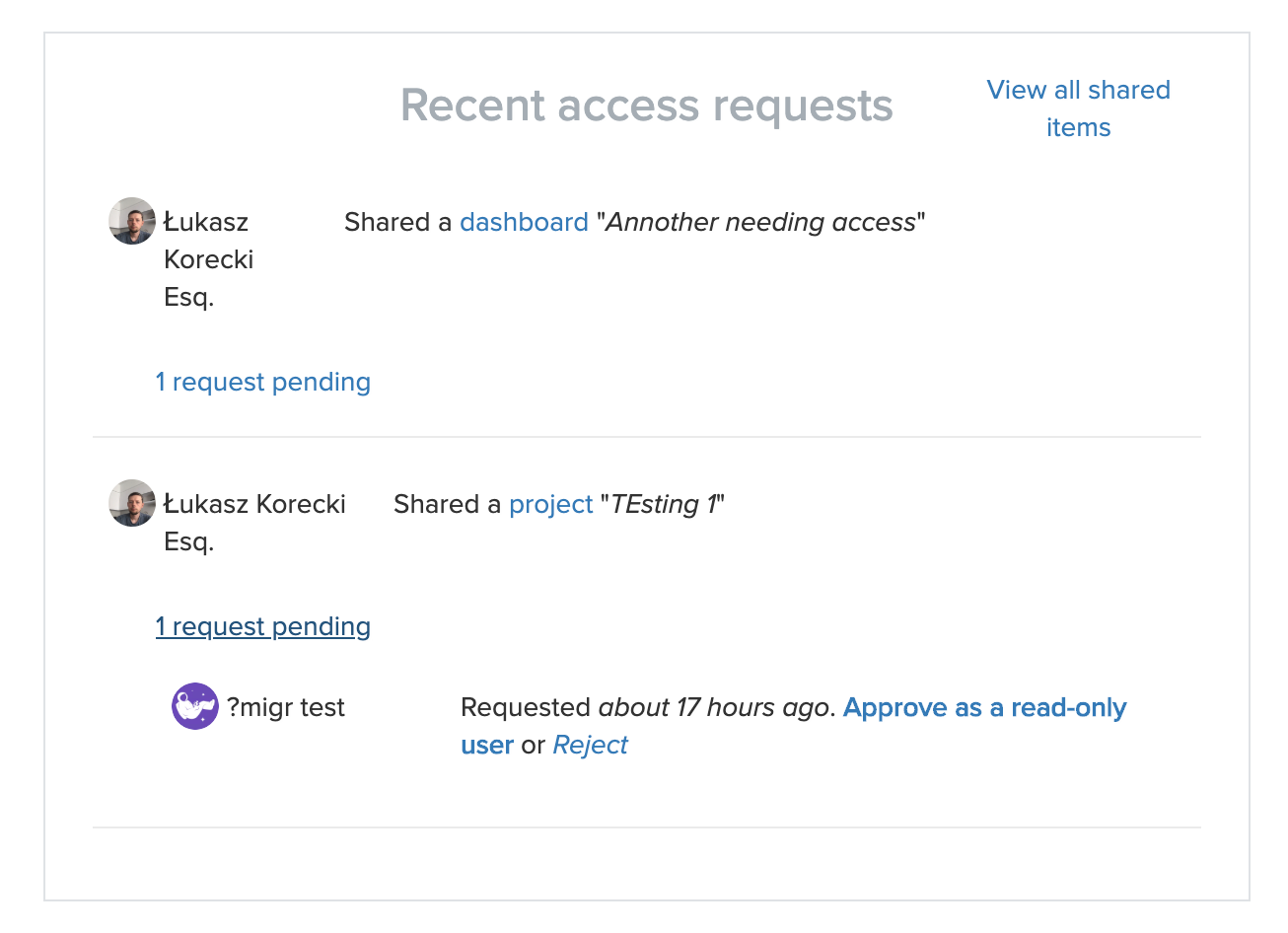
Granting access to a user who is not yet a member of your EnjoyHQ team will automatically assign them a read-only account. By default, read-only users will be only able to see Project Reports, published Stories, and other content specifically shared with them.
Once a sharing request is approved, the new team member will receive two emails:
- An invitation to the account
- Confirmation that they can now access the shared content
After logging in, read-only users can view all items shared with them in the Shared with you section.
Disabling the request and approval flow
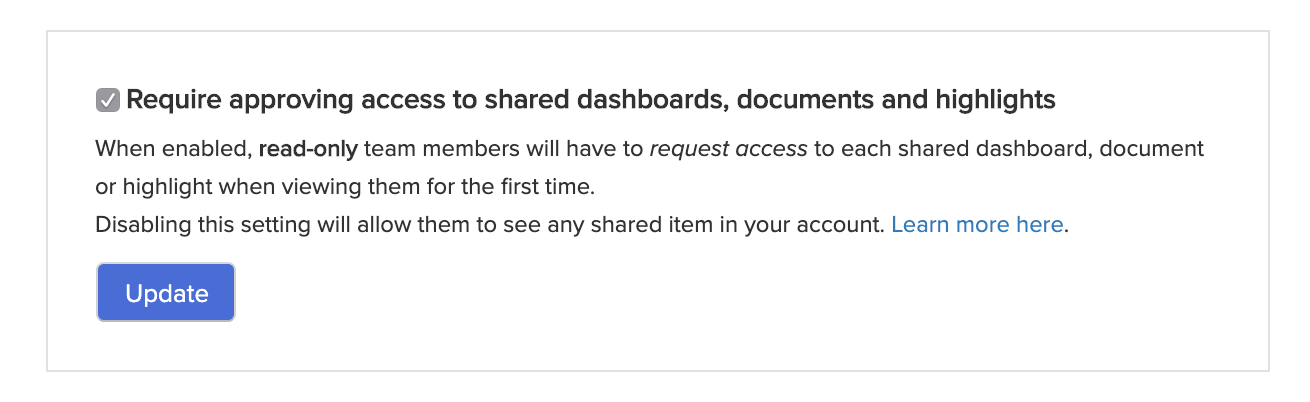
You can disable the need for manually approving access to shared Documents, Highlights, and Dashboards. When this option is disabled, all existing read-only users will be able to view all shared items that have been made shareable. Users who are not yet members of your EnjoyHQ team will still have to go through the initial approval process if SSO is not enabled.
Your system owner can find the setting in the Your team section of the Settings menu.
Sharing Documents and Highlights
Documents can be shared by selecting the Share option from the overflow menu.
Similarly, Highlights can be shared via the Share function at the bottom toolbar of the Highlight Editor.
Granting read-only access to all Documents and Highlights in your account
Some teams want all their read-only users to be able to view all of the Documents and Highlights in the Workspace. While read-only users cannot access the global Search area, automation Rules can be utilized to add all Documents and Highlights in the Workspace to a single consolidated "catchall" Project. This Project can then be set so that this Project's Data section (and thus all Documents and Highlights in the Workspace) is accessible to read-only users.
Examples
- Create a new Project (e.g., "Global Data").
- Enable the Data section in this new Project's Share settings.
- Navigate to the Project's overflow menu in the upper-right corner.
- Create a new automation Rule via the Automate project's data function.
Example Rule queries to find all...
- Documents in the Workspace.
- Documents with Highlights in the Workspace.
Once the Rule is created and active, read-only users will be able to access all of the Documents and Highlights within this given Project.
Sharing Projects, Stories, and Dashboards
Sharing Projects
A given Project can be shared by selecting the Share function in the upper-right corner of the Project toolbar.
By default, when a Project is shared, only its Report section will be visible to read-only users. Read-only users can comment and react to Reports, but cannot see other content within a given Project unless access to those sections are specifically enabled for them.
When enabled, read-only users will be able to access all of the content in given section and perform some general functions:
-
Plan
- View the plan, project description, and other project information.
- Comment on the plan.
- Subscribe to project notifications.
-
Data
- Search and view Documents and Highlights within the Project
- Search and view Documents and Highlights within the Project
-
Analysis
- View the analysis board and search
-
Show customer details
- This toggle enables read-only users to be able to view the name and email of any Customer Profiles linked to Documents within the Project.
- View names and emails of customers that haven't been redacted from embedded Highlights and Documents in Reports and Plans, and content on the Analysis board.
Sharing Dashboards
Dashboards can be shared by opening the Settings menu for a given Dashboard and then selecting the Share Dashboard function.