| Reusable audiences let you reuse audience settings—like demographics, screeners, quotas, and confidentiality preferences—so you can quickly launch consistent, high-quality tests without starting from scratch. |
|
Product: UserTesting Experience: New |
On this page:
What is a Reusable audience?
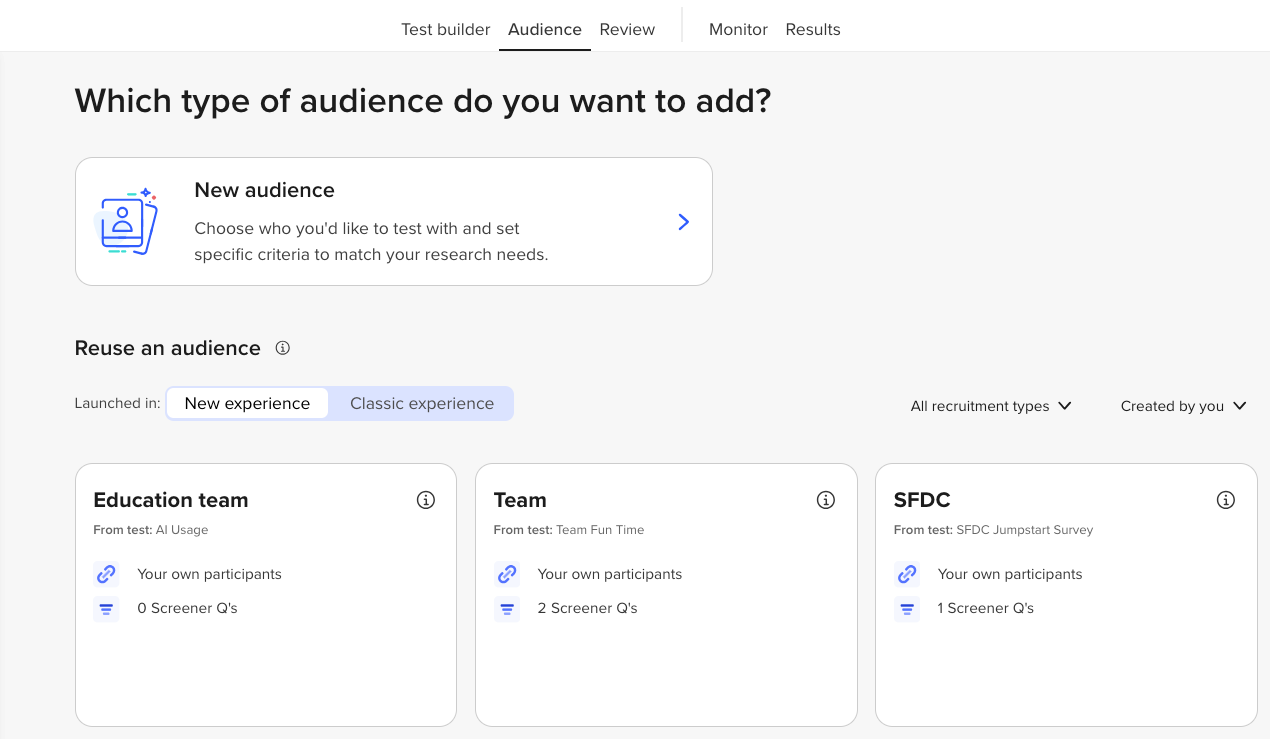
Reusable audiences let you reuse your test audience setup. This includes: demographics, screeners, quotas, and confidentiality settings.
This means:
- No more starting from scratch
- Faster test setup
- More consistent targeting across your team
Watch our video for a quick look:
Why is it helpful?
Reusable audiences are great for:
- Recurring tests: Use the same criteria again and again.
- Large teams: Keep everyone aligned on who you’re testing with.
- Non-researchers: Designers and marketers can launch tests using previously used audiences.
How to use it
- Build your audience
Create your test and set up the audience as usual: Choose demographics, add screeners, set quotas, and confidentiality. You'll start by selecting the + Add button:
Launch your test to automatically save your audience and reuse for future tests. -
Use a Reusable audience
When starting a new test:
- Click “Reuse an audience.”
- Pick the audience that matches your test goals.
- Make changes if needed, or go ahead and launch your test.
3. Find an audience and view its details
To find an audience, use the filters under Reuse an audience. You can filter by where the test was launched (New experience or Classic experience), by audience, by recruitment type, or by creator.
To view an audience's settings, screener questions, and who launched it, hover over the ⓘ icon on the audience card. Saved audiences can't be edited or renamed here.
Favorite a Reusable audience
- Save audience criteria you use often and reuse it in future tests.
- Your commonly used audience setups are easy to find and select.
- Reusing saved criteria reduces manual setup across multiple tests.
- Using shared, saved criteria helps everyone target audiences the same way.
To Favorite a Reusable audience, follow these steps:
- Find the audience with the criteria you want to use.
- Select the star icon to Mark as favorite.
- To Unmark as favorite, select the star icon again.
To find a Favorited Reusable audience, there are two ways:
- Navigate to Audience tab.
- Under the Reuse an audience, you’ll see previously used audiences.
- Favorited audiences are shown with a filled in star.
If you have Favorite audiences, you’ll be able to filter in the dropdown to view all favorites.
Related content
|
Want to learn more? Check out these Knowledge Base articles... |
Interested in growing your skills? Check out our University courses... |
|
Need hands-on training?
|
Can't find your answer?
|